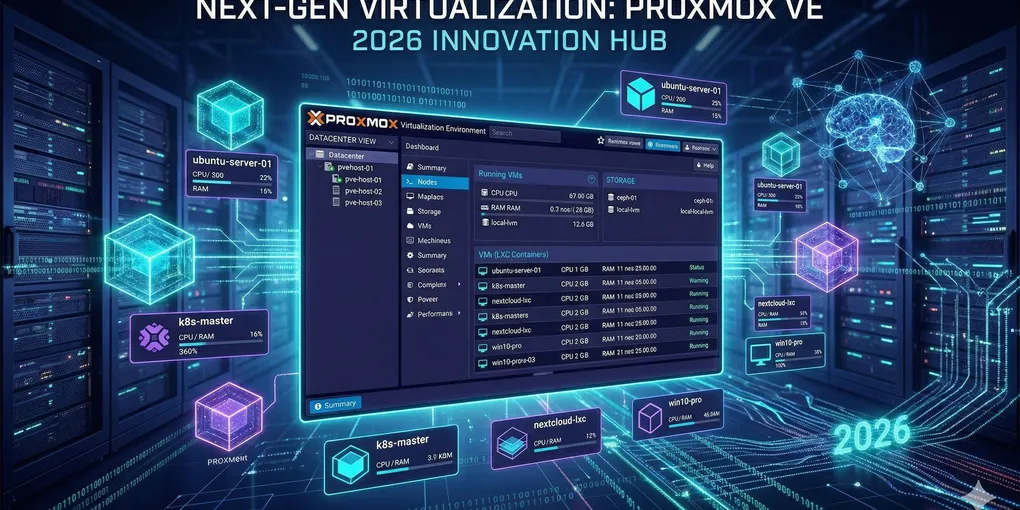
From Bare Metal to Virtualization Dream: Building a Robust Proxmox VE Setup in 2026
Running multiple services on separate physical machines is no longer practical for most home labs. Power consumption, heat, cable mess, and maintenance overhead quickly become overwhelming.
The modern solution? Consolidate everything onto a single powerful host using virtualization. For many enthusiasts and power users in 2026, Proxmox Virtual Environment (VE) has become the go-to platform — combining the power of KVM virtual machines, lightweight LXC containers, and enterprise-grade storage features in one easy-to-manage hypervisor.
Here is my complete, battle-tested blueprint for setting up a clean and highly efficient Proxmox system.
Phase 1: Hardware Foundation & Storage Strategy
Before even booting the installer, storage planning is the most important decision.
I always recommend using ZFS as the root filesystem when the hardware supports it. The sweet spot for most users is two identical NVMe SSDs or enterprise-grade SATA SSDs configured in a ZFS Mirror (RAID 1).
Why ZFS Mirror?
- Automatic redundancy: If one drive fails, the system continues without any downtime.
- Built-in snapshots: You can create a snapshot of the entire host in seconds before updates or major changes.
- Easy rollback: Something breaks? Restore the snapshot in under a minute.
- Data integrity: Checksums protect against silent corruption.
For larger storage needs (media library, backups, etc.), additional drives can be added later as a ZFS pool with RAID-Z1 or RAID-Z2.
Phase 2: Installation and Initial Configuration
The Proxmox installer is straightforward and user-friendly. After the basic installation:
- Assign a static IP address to the host — never rely on DHCP for the hypervisor itself.
- Configure the Linux Bridge (
vmbr0) — this becomes your main virtual switch for all VMs and containers. - Enable PCIe passthrough (if needed) — especially important when running OPNsense, pfSense or other firewalls as a VM. Passing physical network cards directly to the VM reduces latency and improves security isolation.
I also recommend disabling the graphical console after installation if you’re running the server headless to save a bit of resources.
Phase 3: Post-Installation Optimization
Fresh Proxmox installations come with the enterprise repository enabled, which will nag you about a missing subscription. For private and home lab use:
- Disable the
pve-enterpriserepository - Add the
pve-no-subscriptionrepository instead
Then run a full system update:
apt update && apt full-upgrade -y